Create and manage fields within an entity in Dataverse
open a power apps
After clicking on PowerApps, the below screen will be displayed where you can select your created environment shown in the top right corner.
Create and manage fields within an entity in Dataverse
open a power apps
After clicking on PowerApps, the below screen will be displayed where you can select your created environment shown in the top right corner.
"Get started with Power Automate"
What is Power Automate?
Power Automate is an online workflow service that automates actions across the most common apps and services. When you sign up, you can connect to more than 220 services, and can manage data either in the cloud or in on-premises sources like SharePoint and Microsoft SQL Server.
What can you do with Power Automate?
Menus in Power Automate:
The trigger can be something like a new email arriving in your inbox or a new item is added to a SharePoint list.
Actions are what you want to happen when a trigger is invoked.
for creating flow first go to power automate. where you can see all available templates there.
when you click on create flow your flow will be created from a template.
Power Automate is used to automate repetitive business processes. Beyond simple workflows, Power Automate can send reminders on past due to tasks, move business data between systems on a schedule, talk to more than 275 data sources or any publicly available API
These are flows that you build with a trigger and then one or more actions. There is a multitude of triggers and actions available, thanks to the existing connectors. You will see these as My flows and Team flows in Power Automate. The only difference between a My flow and a Team flow is ownership. With a My flow you are the sole owner, while a Team flow has more than one owner.
These flows are built to augment the experience when using Model-driven apps and Microsoft Dataverse. Use these to create a guided experience in your Model-driven apps.
These robotic process automation (RPA) flows allow you to record yourself performing actions on your desktop or within a web browser. You can then trigger a flow to perform that process for you. You can also pass data in or get data out of the process, letting you automate even "manual" business processes.
Automating repetitive tasks like moving data from one system to another
Guiding a user through a process so they can complete the different stages
Connecting to external data sources via one of the hundreds of connectors or directly via an API
Automating desktop-based processes with robotic process automation (RPA) capabilities
Power Apps portals is used to create external-facing websites that allow users outside their organizations to sign in with a wide variety of identities, create and view data in Dataverse, or even browse content anonymously.
Model-Driven App In Power App:-
Model-driven app design is an approach that focuses on adding dashboards, forms, views, and charts to your apps. With little or no code, you can build apps that are simple or very complex.
Model-driven apps have three design phases:
Data within Dataverse is stored within a set of records called Tables.A table is a set of records used to store data, similar to how a table stores data within a database.
how to create new custom table in dataverse:
In the left navigation pane, expand Data, select Tables, and then select + New table.
Under New table, enter the following:
In the Primary Column section
At the bottom, click Create.
On the Relationships tab, on the table designer toolbar, select Add relationship, and then select Many-to-one.
In the right pane, in the Related list, select Account.
Select Done.
Select Save table.
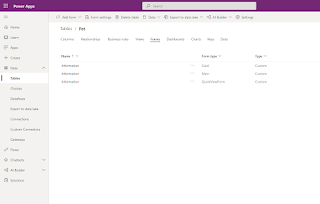
On the Forms tab, select Information next to the Main form type to open the form editor.

On the Views tab, right-click Active Pets view and select Open Link in New Tab. If you don't see the Active Pets view, select Remove filter.
In the view designer, select + View Column, select the following columns, and then select OK
Select the Created On column, select Remove.
To arrange the columns, select the column to move, and then select Move Left or Move Right until your view looks like this. You could also simply drag and drop the columns to arrange the order as well
Introduction to Power BI What is BI? Business intelligence is a technology-driven method that helps you to analyze data and to provide a...